The Teacher dashboard in Imagine+ Assessment® provides tools for managing classes, assigning formative assessments, and viewing student progress. This article explains how to navigate and use the dashboard effectively.
Your dashboard includes two primary sections:
- Left Navigation Panel: Persistent vertical menu for accessing different pages or tools.
- Main Workspace: Dynamic area for viewing and interacting with data.
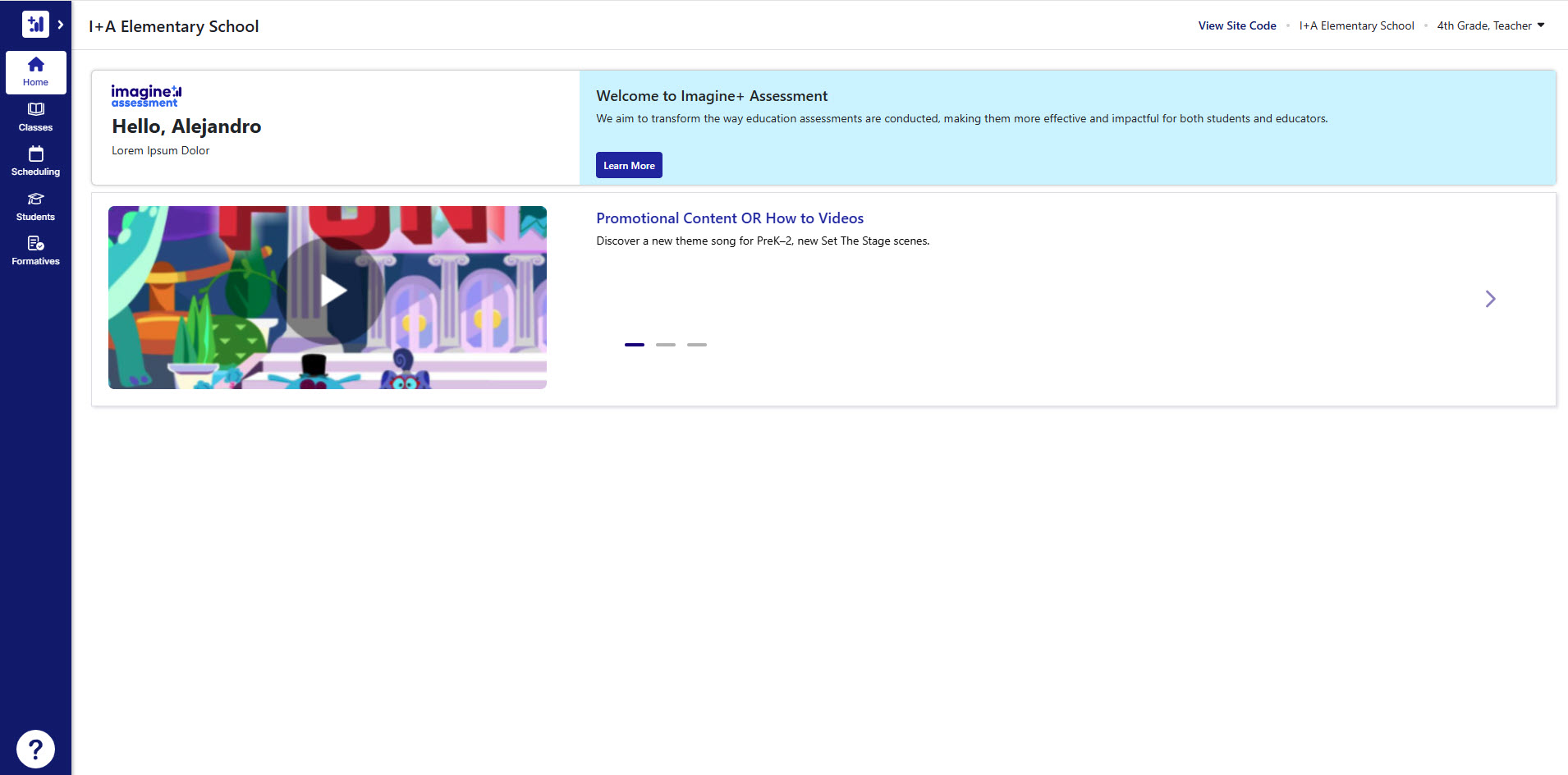
Left Navigation Panel
| Navigation Item | Description |
|---|---|
| Product Selection Menu | Hover over the Imagine+ Assessment logo (top-left) to switch between Imagine Learning® products or return to the Product Portal. |
| Home | This is the default page when you first log in to Imagine+ Assessment. It contains announcements and links to promotional or educational videos and other resources. |
| Classes | View all classes assigned to you. Click a class card see enrolled students and access reports for the selected class. |
| Scheduling | Create, edit, or delete assessment schedules. Filter scheduled assessments by Type (Diagnostic or Screener) or Status (Upcoming, In Progress, Closed). Click the three dots (kebab menu) to take action on an assessment. |
| Students | View all students in your classes. Search for students by name or username. Click a student's name to view their profile (Name, Username, School, Grade, External ID) as well as their enrolled classes. |
| Formatives | Build and assign standards-based formative assessments. Track completion and mastery. |
| Resource Center | The Resource Center includes announcements about new features, links to the Help Center and Customer Learning Library, and information on how to contact Product Support. Tip Access the Help Center through the Resource Center to view all available articles for licensed products. |
Note
Options on your dashboard and within pages depend on your organization's product licensing.
Top Dashboard Features
The following two features are available in the top-right section of your dashboard:
- Site code: Click View Site Code at the top right of the screen to view and copy your school's site code for Imagine+ Assessment. You can provide this code to students to help them log in.
- Profile/Logout drop-down menu: Click the down arrow next to your name to access your profile or log out.